Setting up a student email account in Outlook on Windows (Alternative email system)
Important note:
To set up an email account, you must have a valid user account (BA number + corresponding password).
Adding an email account
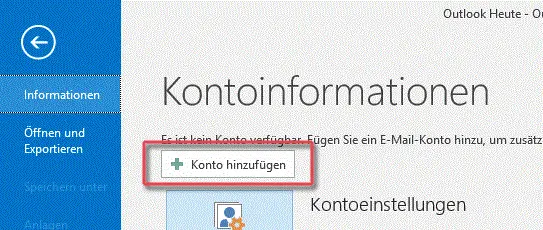
Figure 1: Add a new email account
When you run Outlook for the first time, the Setup Wizard starts automatically.
If you want to add another account in Outlook, click File and then Add Account.
Setting up your email account
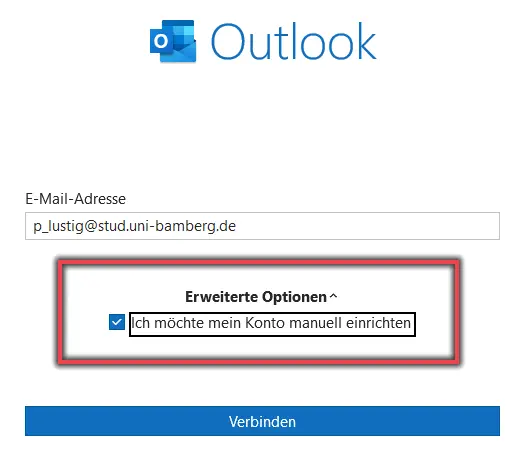
Figure 2: Add Mailbox Using Advanced Options
In the new dialog box, enter your student email address. Click Advanced Options and make sure the checkbox next to I want to set up my account manually is selected.
After clicking Connect, select IMAP in the Select Account Type window that appears.
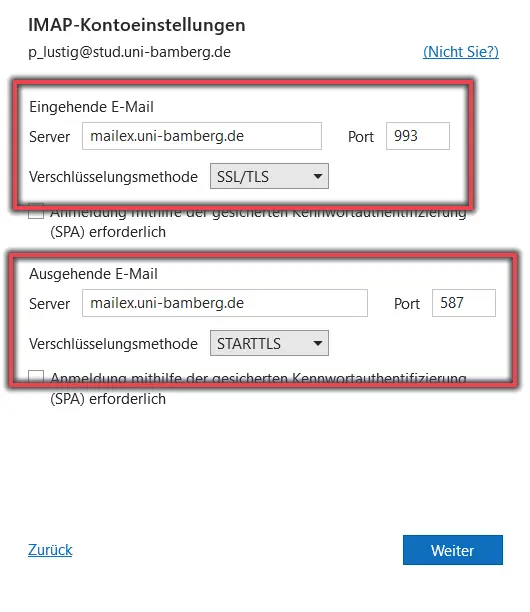
Figure 3: IMAP Account Settings
Configure the following IMAP settings:
Incoming email:
Server: mailex.uni-bamberg.de
Port: 993
Encryption method: SSL/TLS
Outgoing email:
Server: mailex.uni-bamberg.de
Port: 587
Encryption method: STARTTLS
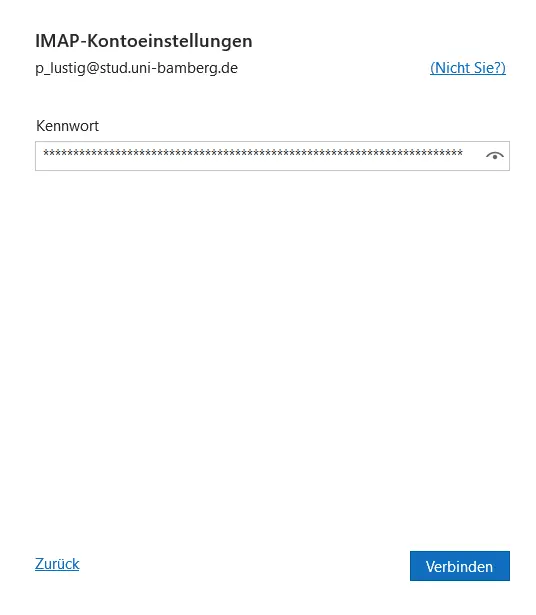
Make sure that neither of the two checkboxes labeled Required for login using Secure Password Authentication (SPA) is selected. Confirm your entries by clicking Next. In the dialog box that appears, enter the password for your BA number and confirm by clicking Connect. Setup should be complete shortly. If necessary, uncheck the box next to Also set up Outlook Mobile for my phone and click OK to finish setting up the account.
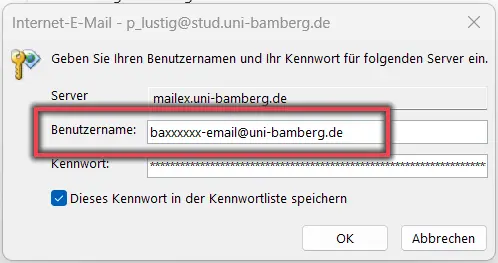
Figure 5: Entering a username
Another window will open; enter your username here.
Username: baxxxx-email@uni-bamberg.de
Password: The password from the IAM portal under Email App Password (filled in automatically)
Figure 4: Entering the email app password
Next, enter the password from the IAM-Portal under SelfService Email App Password in the Password field, and click Connect.