Setting up a Student Email Account in Outlook on macOS (Alternative Email System)
Important note:
To set up an email account, you must have a valid user account (BA number + corresponding password).
Adding an email account
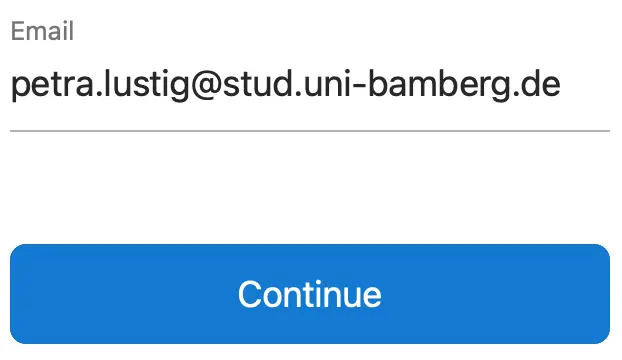
Figure 1: Enter your email address
Launch Outlook, then open the Accounts… submenu from the Tools menu.
Click the + icon and select New Account…
As shown in Figure 1, enter your university email address in the window that appears. After clicking Next, a new window will open.
Setting up an email account
In the new window, please click Not Exchange? in the upper-right corner.
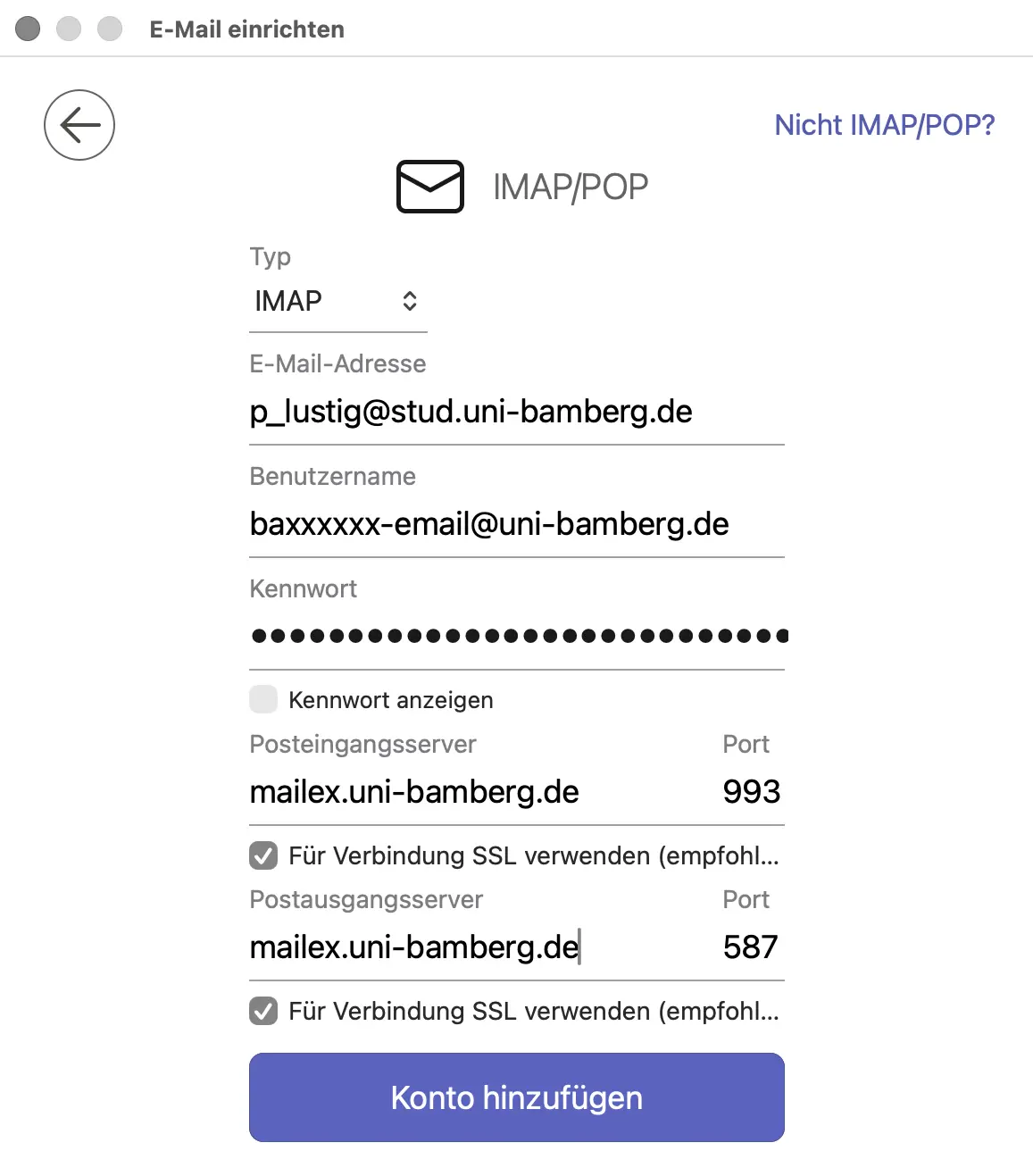
Now select the IMAP option and enter the following information:
- E-Mail-Adress: Your personal email address
- Username: Your personal BA number followed by -email@uni-bamberg.de
- Example: baxxxxxx-email@uni-bamberg.de
- Password: Password from the IAM-Portal under the Self-Service Email App Password
- Incoming mail server: mailex.uni-bamberg.de
- Enter Port 993 after the entry server.
- Select: Use SSL for connection (recommended).
- Outgoing mail server: mailex.uni-bamberg.de
- Enter Port 587 after the outgoing mail server.
- Select: Use SSL for connection (recommended).
Finally, click “Add Account.” After a moment, the account will be set up, and you can close the setup dialog by clicking Done.
Figure 2: Email Account Configuration
Do you have any questions?