If a computer is used by several people, it is mandatory that everyone logs in with their personal BA number. A local user account with which several people work may therefore not be used.
No MFA login may be set up with a technical account.
Please note!
Before you can set up the passkey, the end device must be prepared. Please follow these instructions:
The code matrix and confirmation code should be displayed for selection as a registration option.
Please enter the confirmation code you copied earlier into the field provided on the Getpasskey page and click Verify.
Figure 1: Logging in to Passkeys Uni-Bamberg with confirmation code
Roll out token
Select the menu item Enroll Token.
As you have to roll out a passkey for each device, it is advisable to define a description accordingly. Therefore, assign a corresponding name under Description, such as “Laptop login”. Confirm this with Enroll Token.
Figure 2: Describing the token name and enroll the token on the website
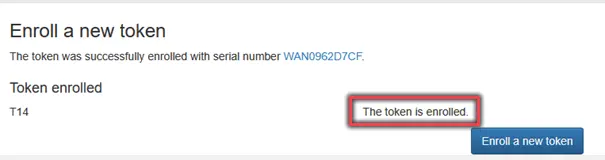
If the passkey has been successfully stored, you will receive the message The token has been rolled out in the next window.
Figure 3: Passkey successfully rolled out
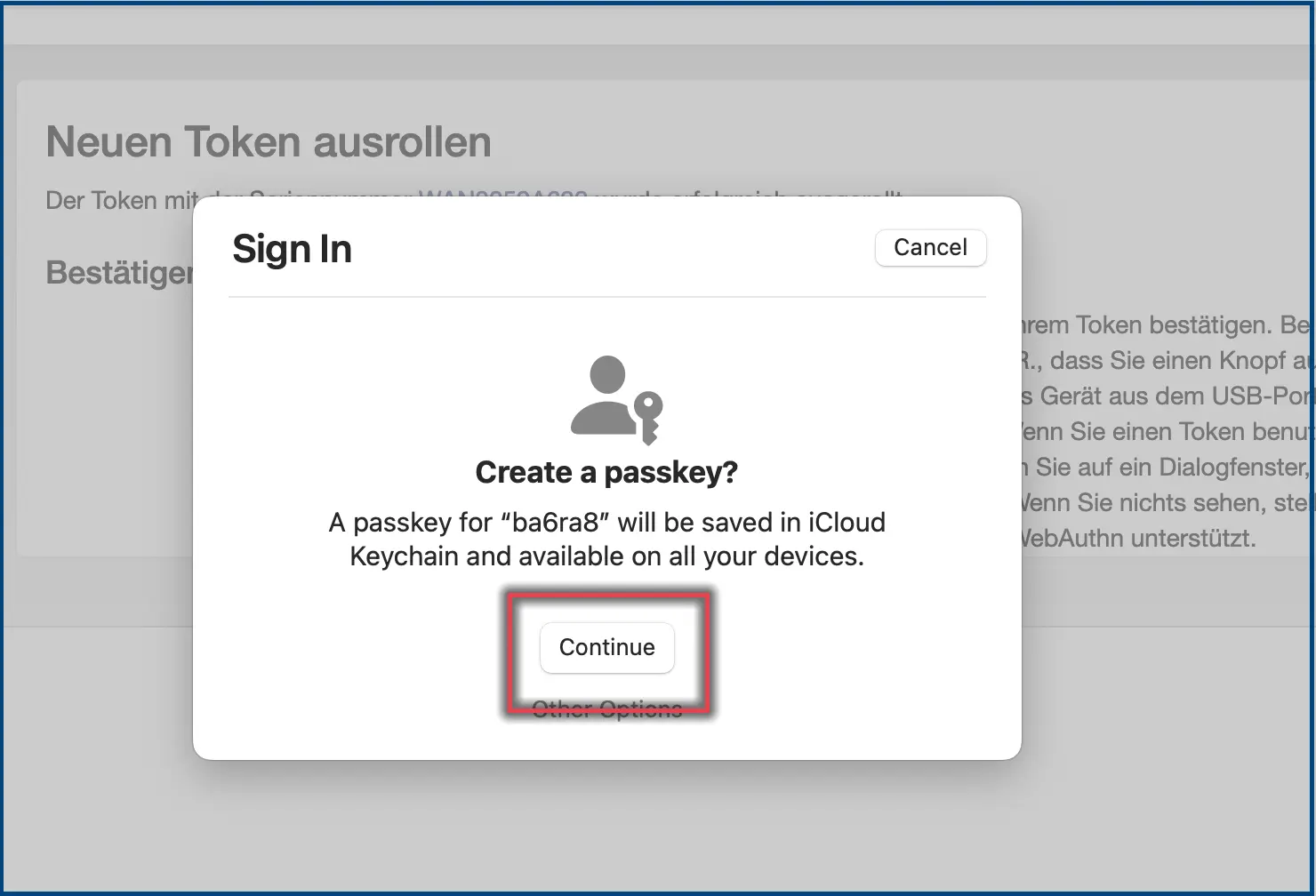
Otherwise, select iCloud Keychain in the window that opens and confirm with Continue.
Screenshot 4: Create Passkey on passkey site
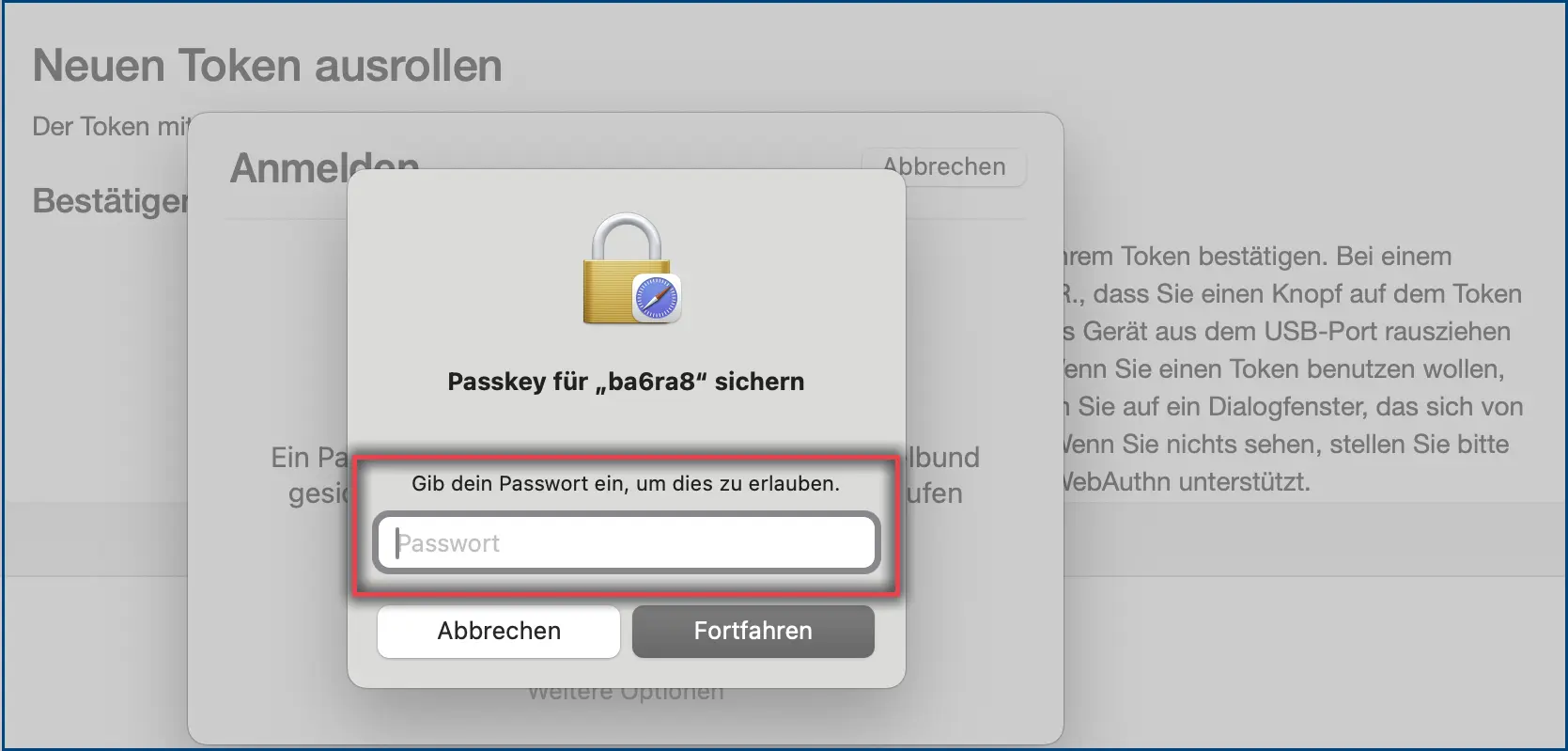
Bitte achten Sie darauf, dass Sie, sollte dies erforderlich sein, bei der Passkey-Ersetzung Ihr eigenes Kennwort für die Ger?tesperre und nicht das Passwort Ihrer BA-Nummer angeben müssen. Best?tigen Sie danach mit Fortfahren.
Figure 5: Allow passkey replacement with the device password
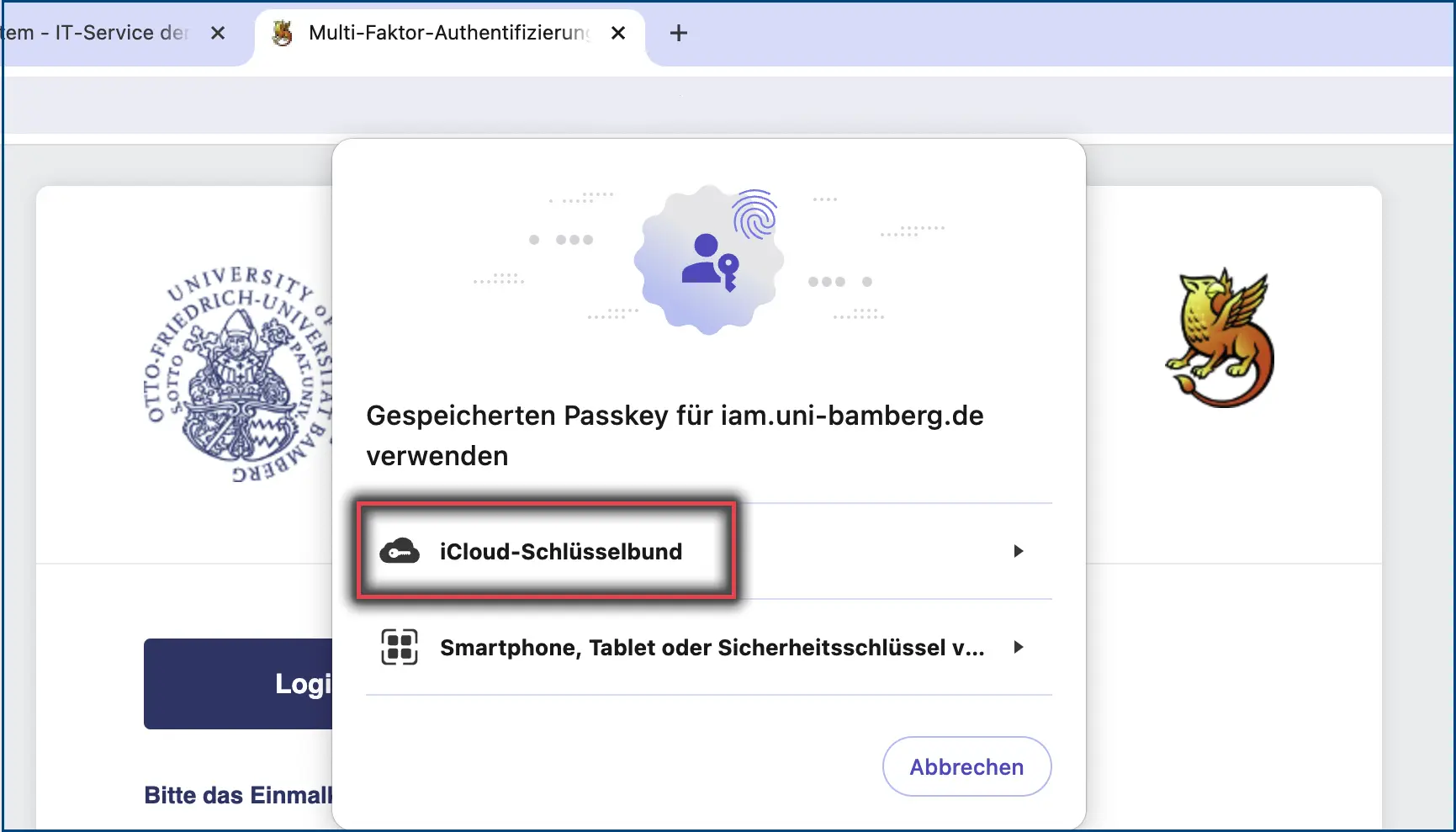
If you use several web browsers in parallel, they should all work with one passkey without any problems. However, additional authorisations may be requested when logging in. Screenshot 11 show an example of logging in with the Chrome web browser.
Figure 6: Chrome login under iCloud Keychain
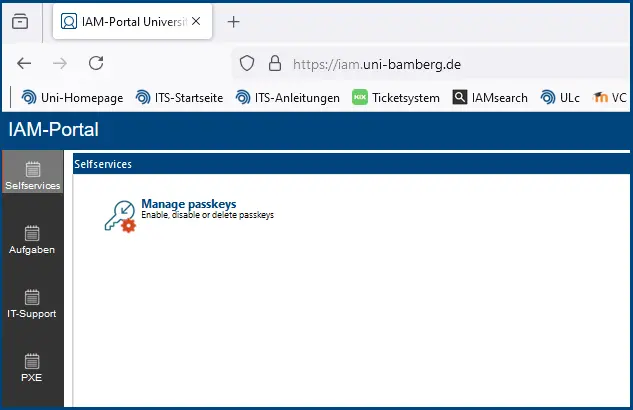
Manage passkeys
Passkeys are managed via the IAM portal (iam.uni-bamberg.de). You can deactivate or delete your passkeys under the menu item Manage Passkeys. Please note that the corresponding passkey must be deleted immediately if the device is lost or stolen.